WordPress plugins can cause errors when they conflict with WordPress core, your theme, your hosting environment or other plugins.
For business owners, plugin issues often seem to appear out of nowhere. A website works perfectly one day, then a form stops submitting, a page layout breaks or customers cannot complete a purchase. In many cases, the problem starts after a plugin update, a new installation or a change elsewhere on the website.
The challenge is that plugin errors are not always caused by a faulty plugin. Sometimes the issue is a compatibility problem between multiple parts of the website.
The good news is that most WordPress plugin conflicts can be diagnosed through a structured process. The key is to avoid making rushed changes that could create additional problems.
In this guide, we’ll explain why plugin conflicts happen, how to identify the cause safely and what you can do to reduce the risk of repeat issues in future.
What Is A WordPress Plugin Conflict?

A WordPress plugin conflict happens when one plugin interferes with another plugin, your theme or WordPress itself.
Every plugin adds code and functionality to your website. Most of the time these additions work together without issue. Problems occur when two different tools try to perform similar tasks or when one piece of software is no longer compatible with another.
A simple example might be a website running two plugins that both manage contact forms. Individually they work correctly. Together they create conflicts that stop forms from loading properly.
The result can range from minor display issues to complete website failures.
This is why a WordPress plugin conflict is often more complicated than a single broken plugin. The issue usually involves the relationship between multiple components of the website.
Why WordPress Plugins Cause Website Errors
Plugin errors usually occur because of compatibility issues, outdated code or conflicts between different parts of a website.
WordPress websites often rely on multiple plugins working alongside a theme, custom code and the WordPress core itself. Problems can arise when a plugin has not been updated for a long period, becomes incompatible with the latest version of WordPress or overlaps with functionality already provided by another plugin or theme.
Website errors can also occur after plugin updates, particularly if the update introduces significant changes or the hosting environment does not meet the plugin’s requirements. In some cases, incompatible PHP versions or custom code can interact unexpectedly with a plugin and trigger functionality issues.
Many plugin-related problems appear shortly after an update. However, this does not mean updates should be avoided. In fact, delaying updates often creates larger security, compatibility and performance issues over time.
The goal is not to avoid updates, but to manage them carefully, test changes where possible and understand how different website components interact with one another.
Common Signs Of A WordPress Plugin Conflict
Plugin conflicts can show up in different ways, from visible layout problems to hidden functionality failures.
Some of the most common warning signs include:
- The WordPress White Screen of Death
- Broken page layouts
- Missing buttons or forms
- WooCommerce checkout failures
- Unexpected error messages
- Slow website performance
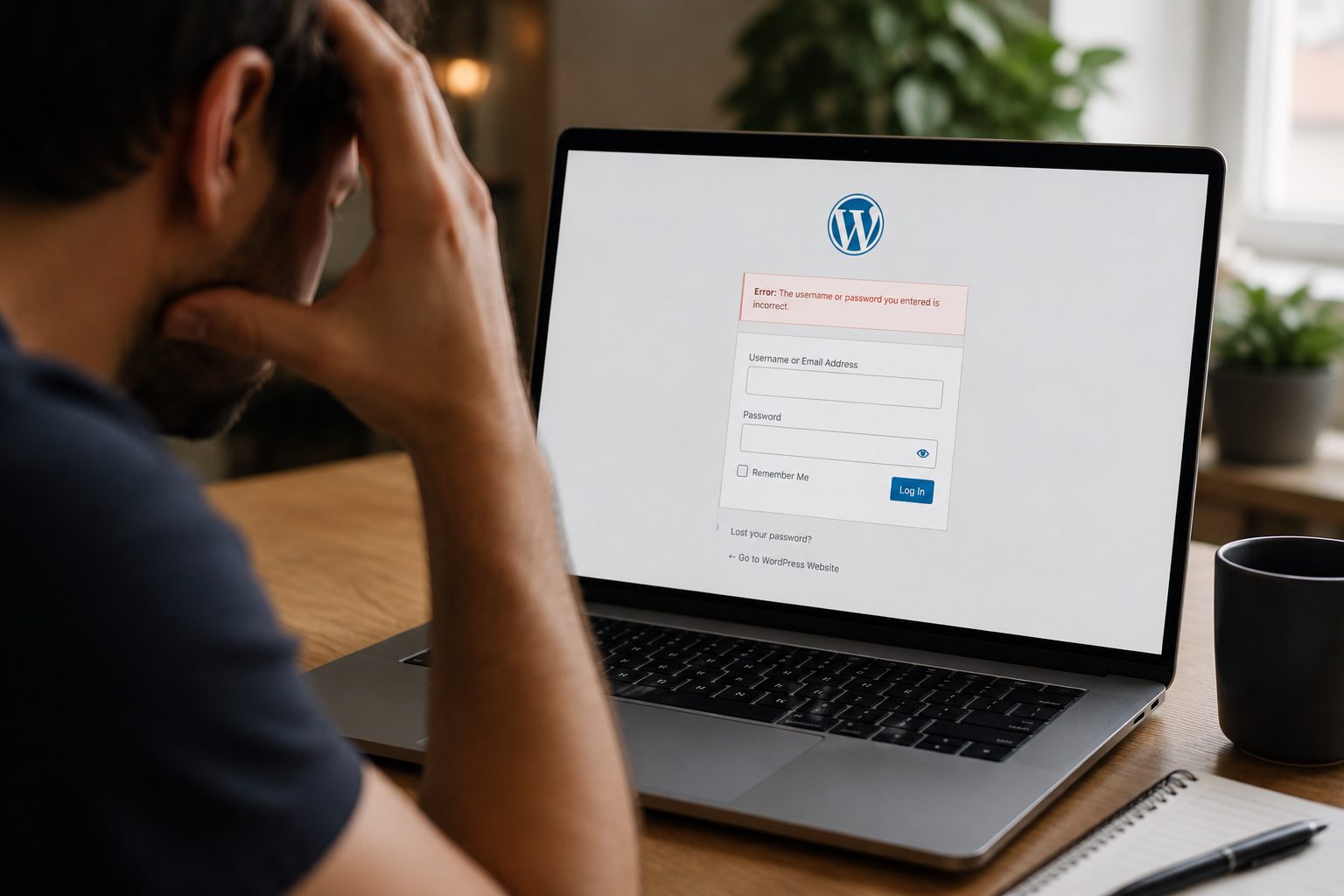
- Login problems
- Features that suddenly stop working
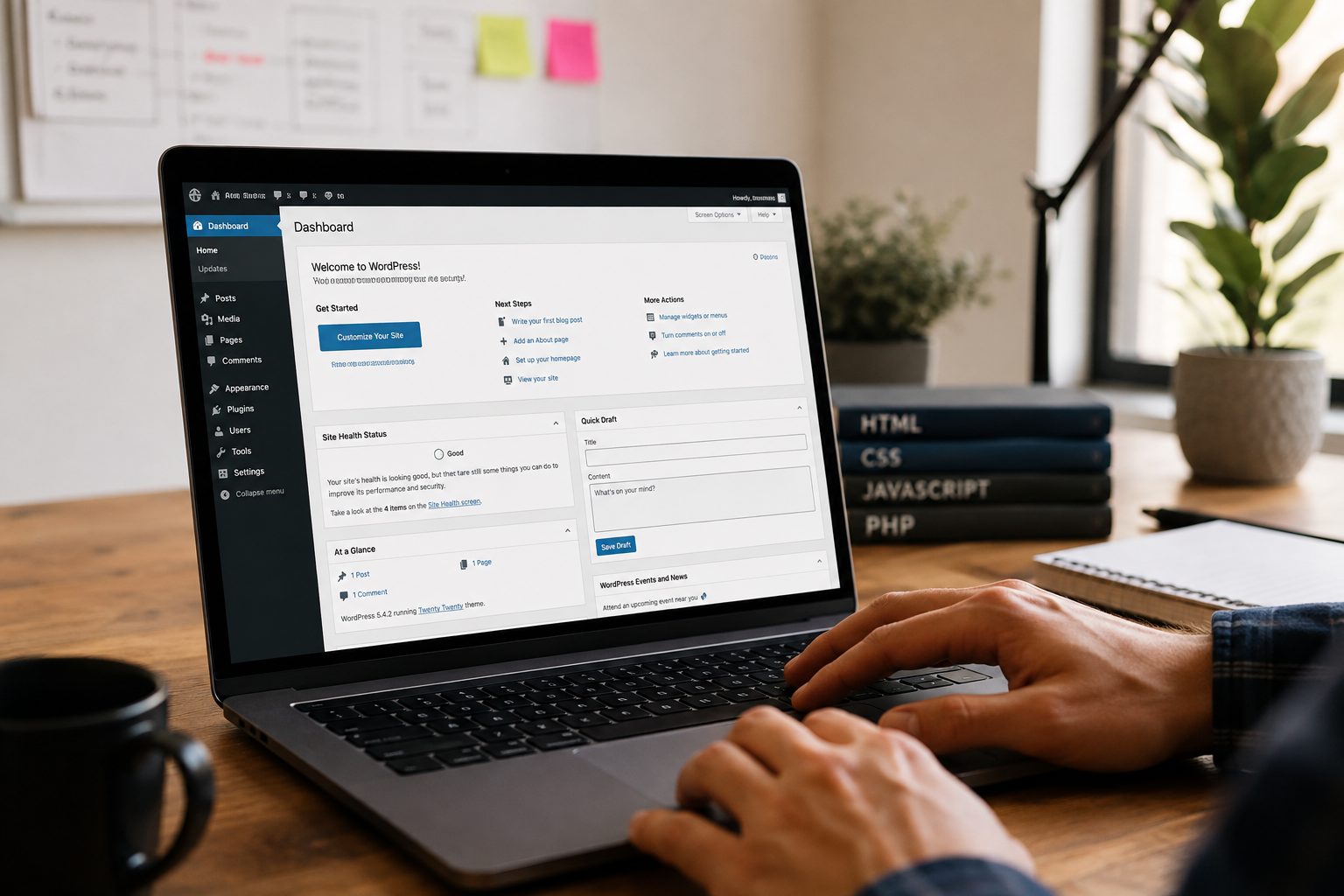
- Admin dashboard issues
One of the challenges with plugin conflicts is that they do not always affect the entire website.
For example, a lead generation website may appear normal while a contact form quietly stops working in the background. Similarly, an ecommerce website may display products correctly while the checkout process fails.
This is one reason plugin issues can have a greater business impact than many owners initially realise.
Why Plugin Updates Can Break A Website
Plugin updates are important, but new code can sometimes conflict with older plugins, themes or hosting settings.
Every update introduces changes. These changes may include:
- New features
- Security improvements
- Bug fixes
- Performance enhancements
- Compatibility updates
Occasionally, those improvements create unexpected side effects elsewhere on the website.
For example, a plugin developer may remove an older function that your theme still relies on. The plugin itself works correctly, but another part of the website no longer behaves as expected.
This is why testing matters.
Many business owners respond to plugin conflicts by delaying future updates. While understandable, this often increases long-term risk because outdated plugins may become increasingly incompatible with WordPress and other software.
The goal is not to avoid updates. The goal is to manage them safely.
How Themes And WordPress Core Can Contribute To Plugin Errors

A plugin may appear to be the problem, but the real issue can involve the theme, WordPress core or the way the website has been built.
Imagine a website that updates a plugin and suddenly develops display issues.
The immediate assumption is that the plugin caused the problem.
However, the actual cause may be:
- An outdated theme
- Custom code added by a previous developer
- A compatibility issue with the latest WordPress version
- A conflict between multiple website components
This is why identifying the source of an error is often more important than focusing solely on the plugin that appears to trigger it.
The plugin may simply expose an existing issue elsewhere within the website.
How To Identify Which Plugin Is Causing The Problem
The safest way to find a plugin conflict is to work methodically and avoid changing too many things at once.
Start with the most recent changes.
Step 1: Review Recent Changes
Ask yourself:
- Was a plugin recently updated?
- Was a new plugin installed?
- Was WordPress updated?
- Was a theme updated?
The answer often provides the first clue.
Step 2: Look For Error Messages
Check for any visible warnings, error messages or unusual behaviour.
Even a small clue can help narrow down the investigation.
Step 3: Review Hosting Logs
If available, server logs may provide information about the underlying issue.
Many hosting providers make these logs accessible through the hosting control panel.
Step 4: Isolate The Likely Plugin
Once you’ve identified the most likely candidate, test that plugin first rather than making widespread changes across the website.
A focused approach usually reduces risk and speeds up diagnosis.
Safe Plugin Conflict Troubleshooting Steps
Before disabling plugins or editing files, protect your website with a recent backup and use a staging environment where possible.
Many website problems become worse because troubleshooting begins before any safeguards are in place.
1. Create A Website Backup First
Always create a backup before making significant changes.
A recent backup provides a recovery option if troubleshooting introduces additional problems.
2. Use A Staging Environment
A staging environment allows you to test changes without affecting the live website.
This is particularly important for WooCommerce websites where changes could affect orders, customer accounts or checkout functionality.
3. Deactivate Plugins One At A Time
Avoid disabling everything at once.
Instead:
- Deactivate one plugin.
- Test the website.
- Record the results.
- Repeat the process if necessary.
This approach makes it easier to identify the source of the problem.
4. Re-Test Website Functionality
Once the issue appears resolved, check:
- Contact forms
- Booking systems
- Ecommerce functionality
- User accounts
- Key landing pages
A website may appear fixed while important features remain broken.
How To Fix A WordPress Plugin Conflict
Fixing a plugin conflict usually involves updating, replacing, disabling or safely rolling back the affected plugin.
The correct solution depends on the cause of the problem.
Common options include:
- Updating the affected plugin
- Updating WordPress core carefully
- Updating the active theme
- Replacing an outdated plugin
- Contacting the plugin developer
- Rolling back to a previous version where appropriate
- Restoring a recent backup
If the website is business-critical and the cause is unclear, professional support is often the safest route.
Repeated trial-and-error troubleshooting can sometimes create more disruption than the original problem.
Preventing Plugin Errors Through Better Website Maintenance
Regular WordPress maintenance can reduce the likelihood of plugin errors by keeping the website updated, monitored and backed up.
Many recurring plugin issues happen because updates are unmanaged or compatibility issues go unnoticed for long periods.
A structured maintenance process typically includes:
- Regular software updates
- Plugin reviews and audits
- Removal of unnecessary plugins
- Website monitoring
- Performance checks
- Routine backups
- Compatibility testing
A professional wordpress maintenance service can help businesses manage updates more safely while identifying potential issues before they affect visitors.
Why Keeping Plugins Updated Matters
Although updates can occasionally introduce conflicts, outdated plugins are often a bigger long-term risk.
Plugin developers release updates for several reasons, including:
- Security improvements
- Bug fixes
- Compatibility updates
- Performance improvements
- Support for newer WordPress versions
Ignoring updates may temporarily avoid a conflict, but it can also allow compatibility problems to build over time.
The better approach is to manage updates carefully, test where appropriate and maintain reliable backups before changes are made.
When To Seek Professional WordPress Support
If plugin errors affect enquiries, sales, checkout functionality or website access, it is usually safer to seek professional WordPress support.
Some situations carry greater risk than others.
Professional support is worth considering when:
- Errors keep returning
- WooCommerce checkout functionality is affected
- The website generates leads or sales
- The WordPress admin area is inaccessible
- Error messages are unclear
- No recent backup is available
- Multiple troubleshooting attempts have failed
For many businesses, the biggest cost is not the technical problem itself. It is the disruption caused while the issue remains unresolved.
Professional support can help with:
- Faster diagnosis
- Reduced downtime
- Expert troubleshooting
- Ongoing monitoring
- Safer update management
- Long-term maintenance planning
Conclusion
WordPress plugin conflicts are common, but a calm, structured troubleshooting process can help identify the issue and reduce further risk.
Most plugin errors occur because of compatibility problems between plugins, themes, WordPress core updates or hosting environments. While the symptoms can be frustrating, the underlying cause is often identifiable through careful investigation.
The safest approach is to work methodically, create backups before making changes and use a staging environment whenever possible. This helps reduce the risk of turning a manageable issue into a larger problem.
Recurring plugin conflicts are often a sign that the website would benefit from a more structured maintenance process. Regular updates, monitoring and compatibility checks can help reduce future disruption and improve website reliability.
If plugin conflicts are becoming a regular issue or affecting important website functionality, professional WordPress maintenance can help you manage updates more safely and reduce future disruption. Ready to review your website support arrangements? get started and speak with the Fly High Web team.