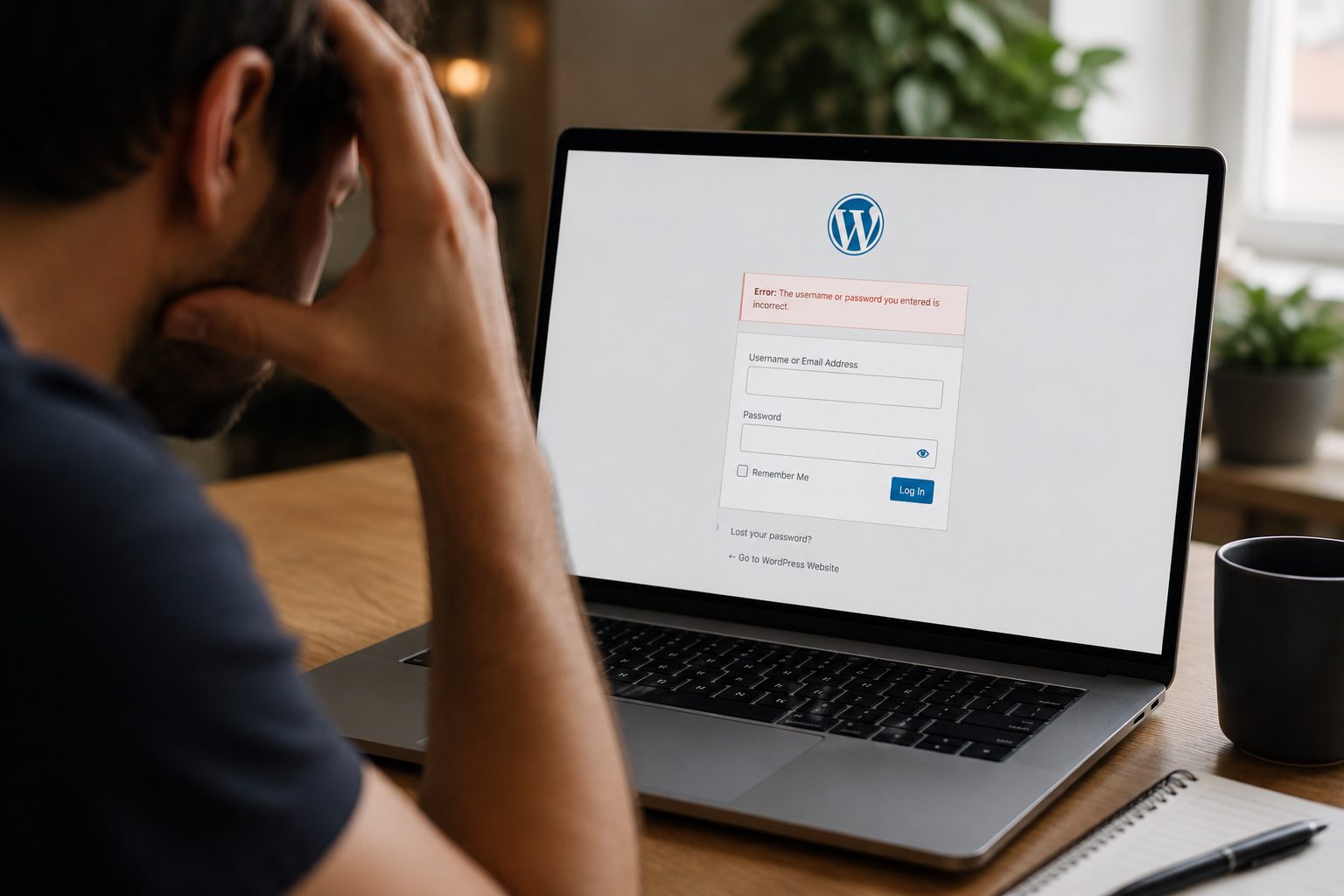
The WordPress white screen of death can be alarming, but in many cases the problem can be traced to a plugin conflict, theme issue, memory limit or file error.
For business owners, the biggest concern is usually not the technical issue itself. It’s the fact that the website suddenly becomes unavailable. Visitors cannot access pages, enquiries may stop coming through, and ecommerce stores may be unable to process orders.
The good news is that the white screen of death is often diagnosable through a structured troubleshooting process. The key is to work methodically and avoid making multiple changes at once.
This guide explains what the WordPress white screen of death is, what commonly causes it and the safest ways to investigate and resolve the issue.
What Is The WordPress White Screen Of Death?

The white screen of death occurs when WordPress encounters a serious error and is unable to display website content properly.
Instead of loading a webpage, visitors may see nothing more than a blank white screen. The issue can affect an entire website, specific pages or even just the WordPress admin area, making it difficult to identify the source of the problem.
Common signs include a completely blank website, a white WordPress login screen, pages that load without displaying any content and situations where access to the admin area is unavailable. In many cases, no error message is shown, which can make troubleshooting more challenging.
One reason this issue is so frustrating is that WordPress often hides the underlying error from visitors. As a result, the website appears blank even though a specific problem, such as a plugin conflict, theme issue or server error, is causing the failure behind the scenes.
Common Causes Of The WordPress White Screen Of Death
Most white screen of death errors are caused by a small number of common WordPress issues.
Understanding the likely causes can help narrow down your troubleshooting efforts.
Plugin Conflicts
Plugin conflicts are one of the most common causes.
A recently updated plugin may become incompatible with another plugin, your theme or your current version of WordPress. In some cases, this creates a fatal error that prevents pages from loading.
Theme Issues
A faulty, outdated or incompatible theme can also trigger the problem.
This often happens after a theme update or when custom code has been added to a theme file.
PHP Errors
WordPress relies heavily on PHP to generate pages.
If PHP encounters a fatal error, the website may fail to load and display a white screen instead.
Exhausted Memory Limits
WordPress websites have memory limits imposed by the hosting environment.
When available memory is exhausted, WordPress may be unable to complete page requests successfully.
Corrupted Core Files
Although less common, damaged or incomplete WordPress core files can also cause loading failures.
This can occur following interrupted updates, failed file transfers or server-related issues.
Before You Start Troubleshooting
Before making changes, ensure you have access to backups and understand how to reverse any actions you take.
Many white screen of death guides jump straight into technical fixes. The safer approach is to prepare properly first.
Before beginning, make sure you have:
- Access to your website hosting account
- Access to your WordPress admin area, if available
- Access to FTP or your hosting file manager
- A recent website backup
- Details of any recent updates or changes made to the website
If you do not have a backup, proceed carefully and document every change you make so it can be reversed if necessary.
For WooCommerce websites, extra caution is important. A poorly executed fix may affect orders, customer accounts or checkout functionality.
Enable WordPress Debug Mode To Identify The Error
Debug mode can reveal hidden error messages that help identify the underlying cause.
By default, WordPress often suppresses detailed error messages. Enabling debug mode can help uncover the specific issue responsible for the white screen of death.
Editing wp-config.php
- Access your website files through FTP or your hosting file manager.
- Locate the wp-config.php file.
- Find the line containing:
define(‘WP_DEBUG’, false);
Change it to:
define(‘WP_DEBUG’, true);
Save the file and reload the website.
In many cases, WordPress will now display a more detailed error message.
Take care when editing website files. Incorrect changes can create additional issues if mistakes are introduced.
Check For Plugin Conflicts

Plugin conflicts are one of the most common causes of the white screen of death.
If the problem appeared after installing or updating a plugin, this should be one of the first areas you investigate.
Using The WordPress Dashboard
If you can still access the admin area:
- Navigate to Plugins.
- Deactivate all plugins.
- Reload the affected page.
- Reactivate plugins one at a time.
- Test the website after each activation.
This process can help identify which plugin is causing the issue.
Using FTP Or File Manager
If the dashboard is inaccessible:
- Access the wp-content folder.
- Rename the plugins folder temporarily.
- Reload the website.
- If the site loads correctly, a plugin conflict is likely responsible.
- Restore the folder name and test plugins individually.
A common example is a recently updated plugin introducing a fatal PHP error that prevents WordPress from loading.
Identify Theme-Related Problems
A faulty or incompatible theme can sometimes trigger a white screen of death error.
If plugin troubleshooting does not resolve the issue, the next step is to investigate the active theme.
Switching To A Default WordPress Theme
- Access the themes directory within wp-content.
- Ensure a default WordPress theme is available.
- Temporarily activate the default theme.
- Reload the website.
If the issue disappears, the original theme may be responsible.
This is particularly common where themes contain custom code or have not been updated for a long period.
Check Your Website’s Memory Limit
Websites that exceed available PHP memory may fail to load correctly.
Larger websites, WooCommerce stores and websites with multiple plugins are more likely to encounter memory-related issues.
Increasing The WordPress Memory Limit
In some situations, increasing the memory limit can help resolve the issue.
This may involve:
- Editing wp-config.php
- Updating PHP settings
- Contacting your hosting provider
Many hosting environments impose limits that cannot be changed directly by website owners.
If increasing the memory allocation is unsuccessful, hosting support may need to investigate further.
Review Core WordPress Files For Errors
Corrupted or incomplete WordPress files can prevent the website from loading correctly.
This is less common than plugin or theme conflicts but still worth investigating if other steps fail.
Safely Reinstalling WordPress Core Files
- Download a fresh copy of WordPress.
- Extract the files locally.
- Upload only the core WordPress files.
- Avoid overwriting the wp-content folder.
- Reload the website and test functionality.
This process can help replace corrupted files without affecting content, plugins or media uploads.
Use Error Logs To Diagnose The Problem
Error logs often provide the clearest indication of what caused the white screen of death.
Many hosting providers provide access to PHP and server error logs through their control panel.
Common error messages include:
- Memory exhausted – available PHP memory has been exceeded.
- Fatal PHP error – a plugin, theme or custom code issue has caused a critical failure.
- Missing files – required WordPress files cannot be found.
- Plugin conflicts – one plugin is preventing WordPress from completing page requests.
Rather than guessing, error logs often provide a direct clue about the root cause.
Restore Your Website From A Backup
If troubleshooting is unsuccessful, restoring a recent backup may be the fastest route to recovery.
For many business websites, restoring a working version is preferable to spending hours investigating a complex issue.
Best Practices For Website Recovery
- Choose the most recent stable backup available.
- Restore the backup using your hosting provider’s recommended process.
- Test key website functionality.
- Check forms, ecommerce features and user accounts.
- Review any content changes made since the backup was created.
Avoid restoring significantly outdated backups unless no other options are available.
How To Prevent The White Screen Of Death In Future
While not all website issues are preventable, regular maintenance can reduce the likelihood of future problems.
Many white screen of death incidents occur after updates, conflicts or underlying issues go unnoticed.
Keep WordPress Updated
Regular updates help maintain compatibility and address known issues.
Test Major Updates
Avoid updating multiple plugins, themes and WordPress versions simultaneously without testing.
Maintain Reliable Backups
Reliable backups provide a recovery option if something goes wrong.
Monitor Website Health
Regular monitoring can help identify problems before they affect customers.
Businesses looking to reduce website risks over the long term may benefit from professional WordPress maintenance services that include updates, monitoring, backups and technical support.
When To Contact A WordPress Maintenance Provider
Some white screen of death issues require deeper technical investigation and should not be handled without experience.
If you’ve worked through the troubleshooting process and the issue remains unresolved, professional support may be the safest next step.
You should consider seeking assistance if:
- The website remains inaccessible
- WooCommerce checkout functionality is affected
- Error logs provide no clear explanation
- Security concerns are suspected
- Multiple recovery attempts have failed
- You are uncomfortable editing website files
Benefits Of Professional Support
Professional support can provide:
- Faster diagnosis
- Reduced downtime
- Experienced troubleshooting
- Backup and recovery assistance
- Ongoing website monitoring
- Preventative maintenance
If you’re experiencing multiple website issues, our guide to WordPress errors and how to fix them may also be useful.
Conclusion
Most WordPress white screen of death issues can be traced to plugin conflicts, theme problems, memory limitations or file errors, and many can be resolved through a structured troubleshooting process.
The most important thing is to approach recovery methodically. Avoid making multiple changes at once, use backups wherever possible and investigate likely causes in a logical order.
For business websites, downtime is often the biggest concern. If troubleshooting becomes overly technical or recovery attempts are unsuccessful, seeking professional support can help reduce further disruption and get your website back online safely.
If you’re struggling to diagnose WordPress issues or want to reduce the risk of future downtime, professional maintenance and support can provide additional peace of mind. Ready to review your website support arrangements? Get started and speak with the Fly High Web team.