Your website footer sits quietly at the bottom of every page, but it plays a bigger role than many business owners realise. It often contains copyright text, links, contact details, or legal information that visitors rely on when they reach the end of a page.
If you have ever spotted outdated wording or wanted to remove default theme text, you may have hesitated through worry of changing the wrong thing. This guide explains how to edit a WordPress footer safely, using clear steps and plain language.
What Is the WordPress Footer and Why It Matters

The footer is the section that appears at the very bottom of your website. It usually stays the same across all pages and acts as a final reference point for visitors.
A well-maintained footer helps people find useful links, confirms your business details, and adds confidence that your site is actively looked after. A footer showing an old copyright year or broken links can quietly undermine trust, even if the rest of the site looks good.
Keeping this area accurate and tidy supports a professional impression.
Different Ways to Edit a Footer in WordPress
WordPress does not use one single method for footer editing. How your footer is managed depends on your theme and how the site was built.
Some footers can be edited visually through settings, others use widget areas, and newer sites may rely on block-based editing. In some cases, the footer is controlled directly by code.
This variety often catches business owners out, which is why ongoing WordPress maintenance support is useful. It avoids guesswork and prevents small updates from turning into larger problems.
What to Check Before Editing Your WordPress Footer
Before making changes, a little preparation goes a long way.
Make sure you are logged into the correct WordPress admin area and that you have permission to edit appearance settings. Decide exactly what you want to change, whether that is text, links, or layout.
If possible, take a backup before editing. This allows any change to be reversed easily if something does not look right.
It also helps to check whether your site uses caching, as this can delay changes appearing straight away.
How to Edit Footer in WordPress Using the Theme Customiser
Many WordPress themes allow footer updates through the Theme Customiser.
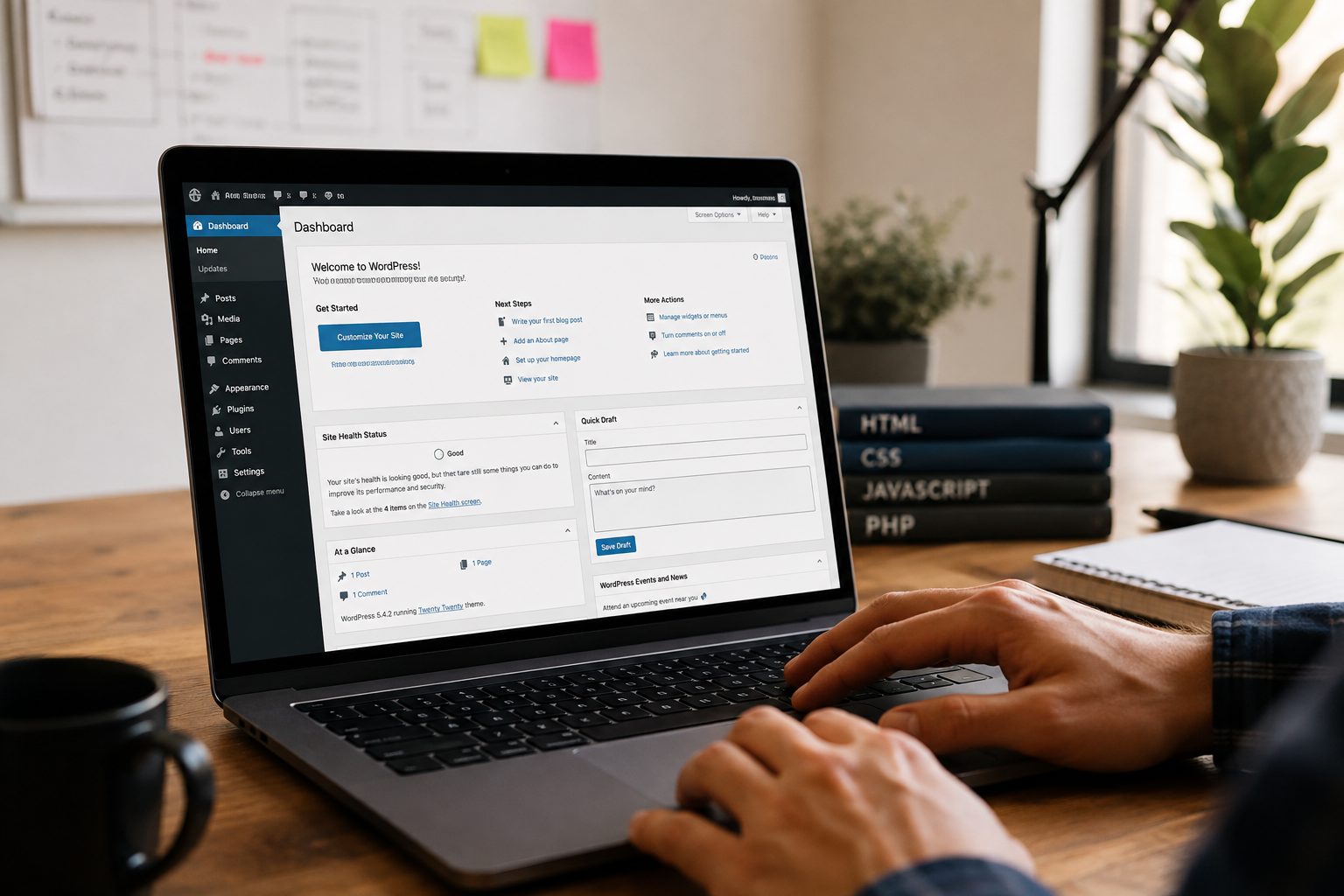
From your dashboard, go to Appearance and then Customise. Look for a section labelled Footer or Footer Settings.
This area often allows you to change text, remove default theme wording, adjust layout options, or update colours. Changes are shown in a live preview, so you can see how the footer will look before saving.
Once saved, check the live site to confirm everything appears as expected.
How to Edit Footer in WordPress Using Widgets

Some themes use widgets to control footer content.
To check this, go to Appearance and then Widgets. You may see areas labelled Footer Area or Footer Column.
Widgets allow you to add text, links, or menus by placing blocks into these areas. This method works well for simple content and does not require technical knowledge.
After updating widgets, review the footer on your site to check spacing and alignment.
How to Edit Footer in WordPress with the Block Editor (Full Site Editing)
Newer WordPress themes may use a block-based system for the entire site, including the footer.
This option is usually found under Appearance and then Editor. The footer can be selected directly and edited using blocks, similar to editing a page.
This approach offers flexibility but can affect layout more easily. Making small changes at a time helps avoid accidental shifts in spacing or structure.
How to Edit the WordPress Footer Using Code
Some websites use custom themes where the footer is controlled by code rather than visual tools.
Editing code directly carries more risk if you are unfamiliar with it. A small mistake can affect layout or cause parts of the site to stop working properly.
If your footer cannot be edited through settings, widgets, or the editor, it is often safer to ask for help rather than experimenting.
Common Footer Editing Issues and How to Fix Them
A frequent issue is footer changes not showing immediately. This is often caused by caching, which can be cleared through your hosting or a plugin.
Another issue is duplicate content appearing. This usually happens when footer text is added in more than one place, such as both widgets and theme settings.
Layout problems can occur if too much content is added to a small footer area. Keeping text concise helps maintain balance across screen sizes.
Best Practices for Updating a WordPress Footer
Small, deliberate changes reduce the risk of problems. Keeping wording clear and links relevant helps maintain a clean layout.
Always check your footer on both desktop and mobile devices, as content may display differently on smaller screens.
Review footer content once or twice a year to keep dates, links, and business details accurate. Avoid making repeated changes in quick succession, as this can create confusion about where content is controlled.
If you would rather not worry about where your footer is managed or risk unwanted changes, you can get started with Fly High Web and have updates handled safely for you.