Changing font size in WordPress is a simple way to improve readability and make your website easier to use. Whether you are updating service pages, improving blog content or fixing mobile usability issues, better typography can make your website feel clearer and more professional.
Most WordPress websites already include built-in font controls, so you usually do not need coding knowledge to make changes.
This guide explains the main ways to change font size in WordPress and how to keep your typography consistent across your website.
How Font Size Affects Website Readability and User Experience

Font size affects how easy your website is to read across desktop and mobile devices.
If text is too small, visitors may struggle to scan information or navigate your pages comfortably. Oversized headings can create cluttered layouts that push important content further down the screen.
Good typography helps users quickly understand:
- page structure
- key information
- calls to action
- service content
It also improves accessibility and makes websites feel more trustworthy and easier to use.
How to Change Font Size in the WordPress Block Editor
The WordPress block editor allows you to change font sizes directly inside text blocks without using code.
Open the page or post you want to edit, then click the text block you want to update. In the settings sidebar, look for the Typography section.
Most blocks include preset sizes such as Small, Medium and Large, along with custom sizing options.
This works for:
- paragraph blocks
- heading blocks
- buttons
- lists
For example, if a heading feels too small on mobile, you can increase the font size directly inside the heading block settings.
Try to keep typography styles consistent across the website. Random font-size changes on different pages often make WordPress websites feel visually uneven over time.
Regular WordPress maintenance can also help prevent styling issues caused by updates or plugin conflicts.
How to Change Font Size Using a WordPress Theme Customiser
Many WordPress themes include global typography settings inside the Theme Customiser.
Go to Appearance > Customise and look for sections labelled Typography, Fonts or Global Styles.
Depending on your theme, you may be able to adjust:
- body text size
- heading sizes
- menu typography
- button text
- mobile typography
This is often the best option if you want to update font sizes across the entire website rather than editing pages individually.
For example, increasing body text slightly site-wide can improve readability without changing every page manually.
Typography controls vary between themes. Some include detailed settings while others offer very limited flexibility.
How to Adjust Font Sizes With Page Builders in WordPress
Most WordPress page builders include visual typography controls.
Builders such as Elementor and WPBakery allow you to adjust heading sizes, paragraph text and spacing directly inside the page layout.
Many page builders also include responsive controls, which means you can use different font sizes for desktop and mobile layouts.
This is useful when large desktop headings become difficult to manage on smaller screens.
Page builders offer flexibility, but too many manual typography changes can create inconsistent layouts over time. Clear and consistent typography is usually more effective than heavily styled pages.
How to Change Font Size Using CSS in WordPress
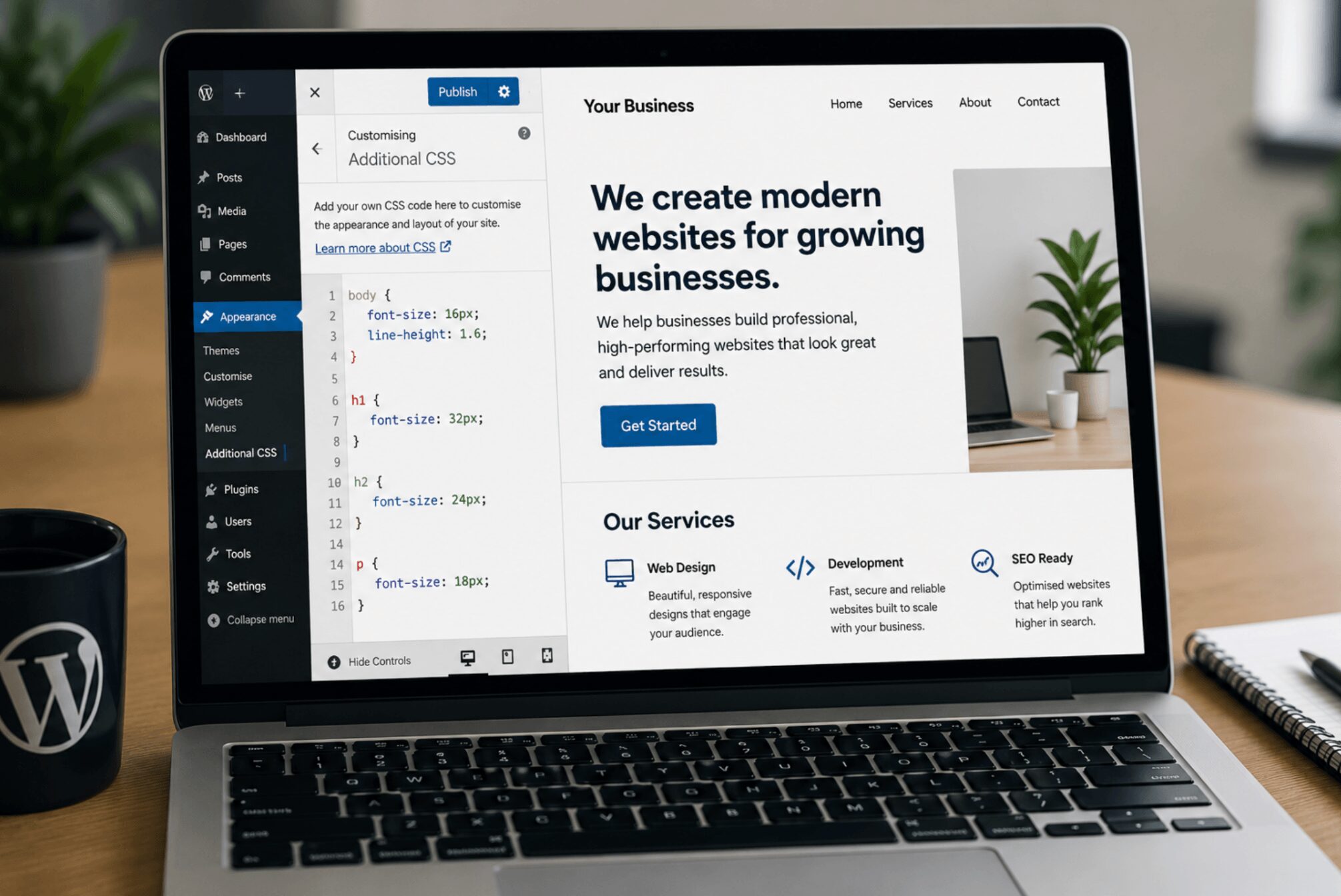
CSS gives you more precise control over font sizes, but changes should be made carefully.
You can add custom CSS through Appearance > Customise > Additional CSS.
For example:
p {
font-size: 18px;
}
This changes paragraph text size across the website.
You may also see responsive units such as rem:
p {
font-size: 1rem;
}
Before making CSS changes:
- back up your website
- test mobile layouts
- check spacing after updates
- avoid changing too many styles at once
Small CSS edits can sometimes affect layouts more than expected, especially after theme or plugin updates.
How to Change Font Sizes Across an Entire WordPress Website
Global typography settings help keep font sizes consistent across your website.
Instead of manually editing every page, global settings allow you to update:
- body text
- heading hierarchy
- button styles
- spacing
This approach is easier to manage long term and helps maintain a more professional layout as the website grows.
It is particularly useful during redesign projects or when improving mobile readability across older websites.
Best Practices for Choosing Website Font Sizes
The best font sizes are the ones that keep your website easy to read on all devices.
Body text should feel comfortable to read without zooming, especially on mobile. Headings should create clear structure without dominating the page.
It is also important to test typography across different screen sizes. Font sizes that look balanced on desktop screens can sometimes feel too small or oversized on mobile devices.
Readability should always take priority over design trends.
Common Font Size Mistakes That Affect Website Usability
Poor typography choices can make websites harder to use.
Common issues include:
- very small body text
- oversized headings
- inconsistent typography
- poor spacing
- difficult mobile layouts
We often see WordPress websites where typography becomes inconsistent after years of edits from different users. Small layout changes gradually build up and create a less polished experience.
Typography should support usability quietly in the background rather than dominate the design.
How Responsive Font Sizes Improve Mobile User Experience
Responsive font sizes help websites stay readable across desktops, tablets and phones.
Without responsive typography, headings may become too large on mobile while paragraph text becomes difficult to read.
Modern WordPress themes and page builders usually include responsive typography controls that help text scale more naturally across devices.
After changing font sizes, always test:
- mobile layouts
- heading spacing
- buttons
- forms
- page readability
Many typography problems only appear properly on smaller screens.
When to Use Custom Typography Settings in WordPress
Custom typography settings are useful when businesses need more control over branding, readability or accessibility.
For example, a business redesigning its website may want consistent heading sizes and spacing across all pages to improve clarity and presentation.
However, more typography customisation is not always better. In many cases, simplifying inconsistent layouts creates a better user experience than adding extra styling.
The goal should always be clarity and usability first.
How Fly High Web Helps Businesses Improve WordPress Website Design and Usability
Typography is only one part of creating a website that feels clear, usable and professional.
Many businesses struggle with WordPress websites that become inconsistent over time through plugin changes, layout edits and outdated styling choices.
Fly High Web helps businesses improve:
- WordPress usability
- responsive layouts
- readability
- accessibility
- long-term website management
If your website feels difficult to manage or inconsistent across devices, it may be time to review the wider user experience rather than only adjusting individual design settings.
You can get started with a practical conversation about improving your WordPress website usability and long-term consistency.