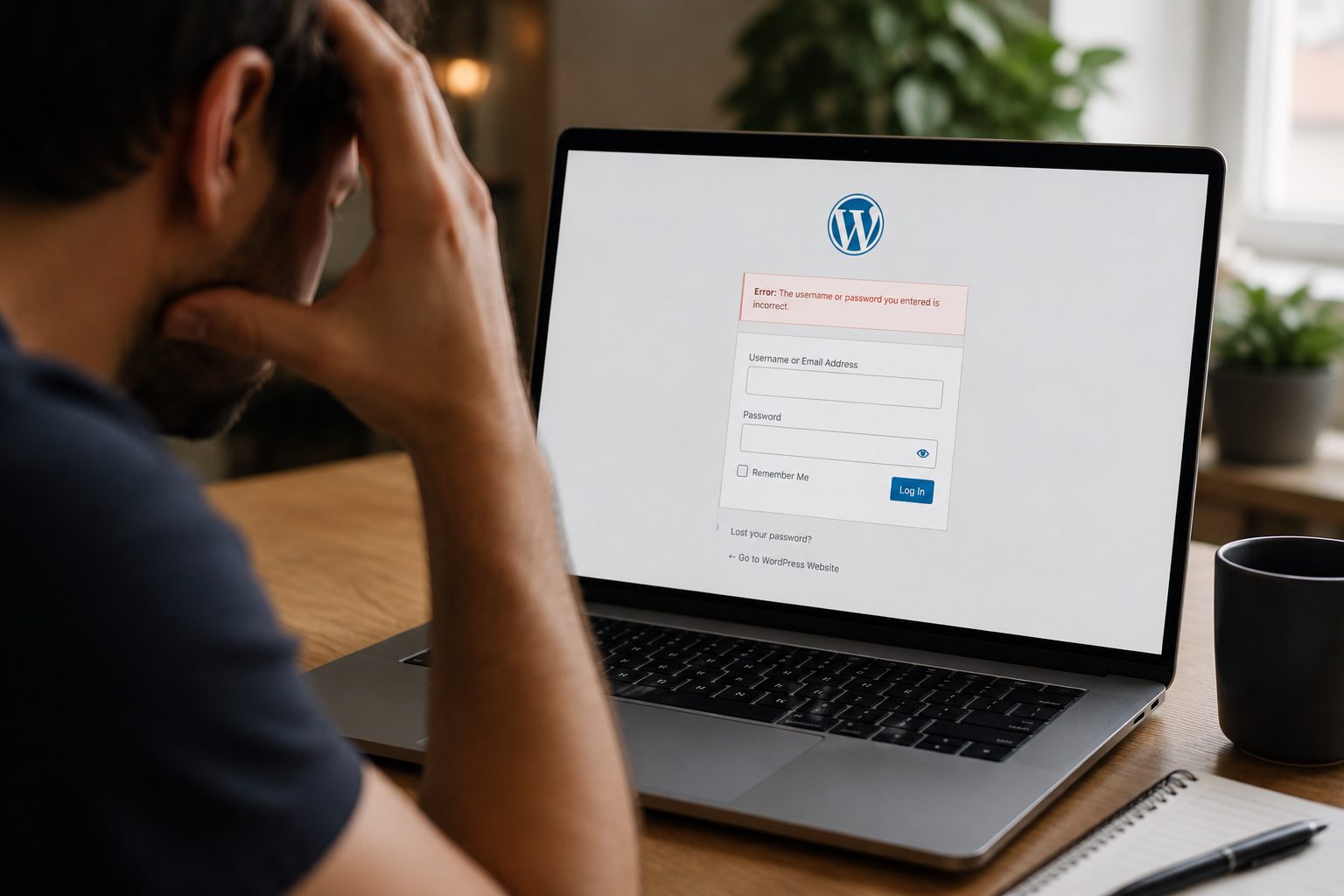
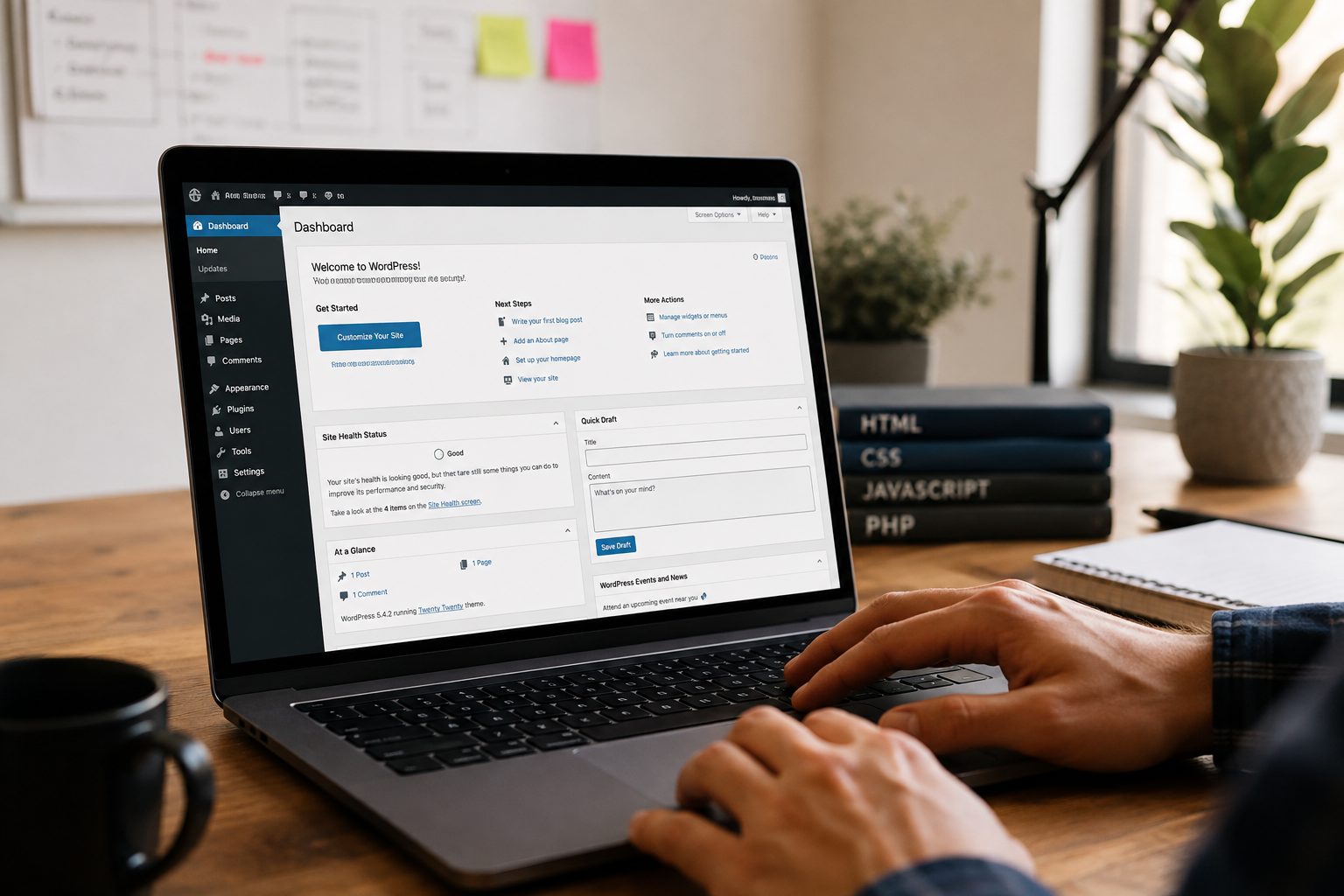
So, picture this. You’ve just installed a new plugin that looked promising. But suddenly, everything stops working your site goes blank, visitors can’t access anything, and you’re left wondering what on earth went wrong. In another scenario, someone with bad intentions finds their way in, and before you know it, you’re locked out of your site.
Both of these situations happen more often than you might think, and without a working backup, they can lead to days of stress, lost sales, and serious reputational damage.
Now, a good backup won’t stop things from breaking, but it does give you a way back. That’s the key difference. It’s the virtual equivalent of saving your work on a Word document before trying something risky. If it goes south, you just reload the last saved version no drama, no meltdown.
It’s not just about disaster recovery, either. A reliable backup gives you confidence. You’re not afraid to make changes, try new features, or redesign parts of your site because you know you’ve got a safety net. For business owners, freelancers, and anyone relying on WordPress to make a living, that kind of assurance is priceless.
Types of WordPress Backup Options

Backing up a WordPress site isn’t one-size-fits-all, and it doesn’t need to be. Depending on your skills, budget and appetite for tech tinkering, there are a few ways to get it done.
Let’s start with manual backups.
These involve connecting to your site using FTP tools like FileZilla and downloading your site’s files. On top of that, you’ll need to log into your web host’s control panel (usually cPanel), export your database through phpMyAdmin, and store everything in a safe place. It works but it’s fiddly and not ideal if you’re time-poor or not especially confident with tech.
Next up are automated plugin backups, which are, frankly, what most people should go for.
These plugins run scheduled backups of your files and database often daily and then store them remotely on services like Google Drive, Dropbox, or their own cloud. Some even email you when they’re done, so you’re always in the loop.
Cloud backups add an extra layer of resilience. If your hosting server crashes, you still have your website data safe and sound elsewhere. The idea is that your site and its backups aren’t kept in the same physical location sort of like not storing your only house key right under the mat.
Then there are hosting-level backups. Some web hosts include daily or weekly backups as part of their plan, which is handy. But don’t rely on them completely if your hosting account gets compromised or your server fails entirely, those backups might vanish too. It’s like keeping your spare house keys in the same drawer as your main ones not ideal if the drawer disappears.
You’ll also come across full backups, which copy everything on your site files, media, themes, plugins, database and incremental backups, which only update what’s changed since your last backup. The latter uses less storage space and runs faster, but you’ll need both for a complete recovery strategy.
Top Backup Plugins for WordPress
Now, if you’re going the plugin route (which most people do), choosing the right one is important. The goal is to find something that doesn’t need a PhD to operate but still gives you full control over how and when your backups are created.
UpdraftPlus is usually the first recommendation for a reason. The free version is generous, giving you automated scheduling, offsite storage integration, and one-click restores. You can also choose which parts of your site to back up useful if you’re working with limited storage.
Jetpack Backup, made by Automattic (the same team behind WordPress.com), is a polished option, especially for WooCommerce stores. It handles real-time backups, so each product update or order is recorded immediately. That means zero downtime if something breaks.
BlogVault is another strong player. What makes it stand out is its external dashboard separate from your WordPress admin which is helpful if your site is completely down. It also includes a staging site feature, which lets you test updates and changes in a safe environment before pushing them live.
BackWPup is often picked by beginners thanks to its simple setup and support for a wide range of cloud storage options. It’s light on bells and whistles, but it gets the job done, especially if you just want something basic that works in the background.
The main things to look for in a plugin are: ease of use, automatic scheduling, support for offsite storage, and most importantly the ability to restore quickly and clearly when something goes wrong.
Setting a Consistent Backup Schedule

Now let’s talk frequency. How often should you back up? There’s no universal schedule that works for every site it really depends on how often your content changes.
If your site changes every day say you’re blogging often, uploading new products or processing lots of transactions then daily or real-time backups are your best bet.
Running a smaller site that’s only updated once or twice a week? Weekly backups should be fine.
If your site is rarely updated think brochure-style pages with only occasional changes then a monthly backup might be enough, but we’d still suggest erring on the side of caution and going weekly just in case.
And regardless of how often you back up, follow these habits:
- Keep at least three backup versions, stored in different places if you can. That way, you’ve got options if something corrupts.
- Don’t keep all your backups on the same hosting account. Use offsite or cloud storage to protect against server-wide issues.
- Every few months, test your backups. Restore a copy on a staging site to check that it works properly. There’s nothing worse than relying on a backup that turns out to be broken.
Combining Backups with Full WordPress Maintenance
Backups are brilliant, but they’re only one part of keeping your website healthy. You also need to think about regular updates for plugins, themes, and WordPress itself plus uptime monitoring, security scans, and performance optimisation.
If that all sounds like a bit much, you’re not alone. Juggling everything can quickly become a full-time job, especially if you’re trying to grow your business at the same time.
That’s where a WordPress maintenance service like those from Fly High Web can make all the difference. Instead of constantly checking if your site’s up to date, scanning for malware, or worrying whether your backup worked, Fly High Web handles that daily, so you don’t have to.
It means fewer headaches, quicker fixes when problems do pop up, and a much stronger chance of avoiding disaster in the first place. And with Fly High Web, you’re not just getting backups you’re getting full-site care, from updates to uptime to performance tuning.
Most importantly, it gives you your time back, which is arguably more valuable than any plugin out there.