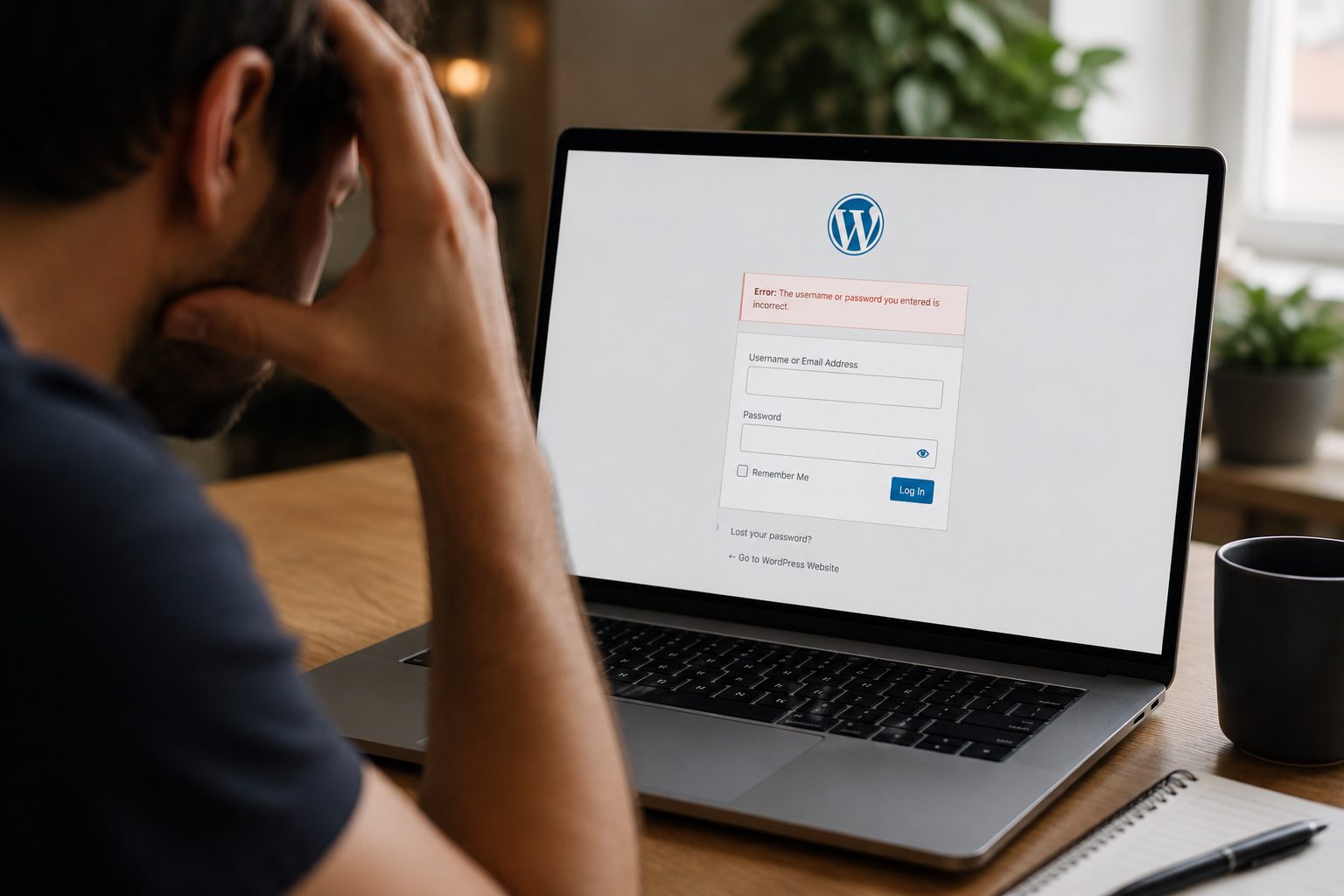
Unexpected redirects can result from malware, incorrect website settings, plugin conflicts or redirect rules. Identifying the cause is the first step towards resolving the problem safely.
You may find that visitors are sent to an unrelated website when they open your homepage, click a specific page or arrive through a search engine. In other cases, the redirect may only affect mobile users, first-time visitors or people using a particular browser.
This can be worrying, especially when your website supports enquiries, bookings or online sales. However, an unexpected redirect does not automatically prove that the website has been hacked.
Legitimate settings can also cause the problem. A domain migration, HTTPS configuration, redirect plugin or hosting rule may send visitors to the wrong location when it has been set up incorrectly.
The safest response is to investigate the issue methodically. Avoid changing several settings or deleting files at once, as this can make the original cause harder to identify.
This guide explains why a WordPress website may redirect to another site, what you can check safely and when professional support is the better option.
Why Is My WordPress Website Redirecting to Another Website?

Unexpected redirects can be caused by malicious code, incorrect WordPress settings, plugins, hosting rules or changes made during a website migration.
A redirect simply tells a browser to move from one web address to another. Many redirects are intentional. They can send visitors from an old page to its replacement, direct HTTP traffic to HTTPS or move users to a new domain after a rebrand.
The concern begins when visitors are sent somewhere you did not choose.
For example, your homepage may open normally for you while another visitor is sent to a spam website. A service page may redirect correctly on desktop but behave differently on a mobile device. Your WordPress dashboard may still work, even though some public pages are affected.
These differences can make the problem difficult to spot.
Start by recording what is happening. Note which page redirects, where it sends visitors and whether the behaviour changes across browsers, devices or private browsing.
You should also think about recent changes. Have you installed or updated a plugin, changed your domain, added an SSL certificate or moved the website to a different hosting provider?
That information can help distinguish a configuration issue from a possible security problem.
How Malware Can Cause Unexpected Redirects
Malware can cause unexpected redirects by adding malicious instructions to website files, the database or scripts loaded within a page.
This type of compromise may send visitors to spam, misleading adverts or other unrelated websites. The redirect may not appear for every visitor, which allows the problem to remain hidden from the website owner.
Some malicious redirects are triggered only under certain conditions. They may target visitors arriving through a search engine, people using mobile devices or users who have not visited the site before. Security specialists describe redirect malware as code that can be inserted into website files or database records and used to send selected visitors elsewhere.
This means checking the website once from your usual browser may not reveal the issue.
Try viewing the affected page through a private browsing window and another device. Ask a trusted colleague to check it from a separate connection. Record the destination address without clicking further through an unfamiliar site.
Do not assume malware is the only explanation. Incorrect redirect settings can produce similar symptoms.
However, redirects to clearly unrelated, suspicious or inappropriate websites should be treated seriously. Contact your hosting provider or WordPress support specialist before installing several security tools or manually changing files.
A proper investigation should identify where the redirect is being generated and how the original weakness occurred.
Checking for Compromised Plugins and Themes
Outdated or vulnerable plugins and themes can create opportunities for attackers or introduce compatibility issues that affect website behaviour.
WordPress websites often depend on software from several developers. One plugin may manage redirects, another may handle security and another may control the page layout.
If one of these tools becomes outdated, abandoned or incompatible, it may contribute to unexpected behaviour.
Review the plugins and themes installed on the website. Check whether they came from trusted sources, whether they still receive updates and whether any recent change happened shortly before the redirects began.
Be particularly cautious with “nulled” themes or plugins downloaded from unofficial websites. These are unauthorised copies of paid software and may contain altered code. Even when they appear to work, you cannot confidently verify what has been added to them.
Unused plugins and themes should also be reviewed. Deactivating software does not necessarily remove its files from the hosting account.
Do not update or delete everything at once. Create a current backup first and make controlled changes so you can identify which action affects the redirect.
Ongoing maintenance helps reduce the likelihood of outdated or unsupported software remaining unnoticed. Fly High Web’s WordPress maintenance service supports regular updates, monitoring and website health checks as part of a preventative maintenance routine.
Reviewing Your WordPress URL and Site Settings
Incorrect WordPress Address or Site Address settings can create redirect loops or send visitors to the wrong domain.
WordPress uses separate settings to identify where its core files are located and which address visitors should use to reach the website. WordPress documentation distinguishes the installation address from the public site address used to access the site.
These settings usually match, but they may differ when WordPress is installed in its own directory or when a website uses a more complex setup.
Problems can develop after a domain change, migration or HTTPS update. For example, one setting may still reference an old domain while another points to the current website.
A mismatch between HTTP and HTTPS can also create repeated redirects when WordPress, the hosting provider and an SSL plugin are all trying to control the same behaviour.
If you can access the dashboard, review the WordPress Address and Site Address under the general settings. Do not change them unless you understand the intended configuration, as an incorrect edit could make the dashboard harder to reach.
If you cannot access WordPress, ask your hosting provider or developer to review the settings safely rather than following database-editing instructions without a current backup.
Other configuration problems may create related symptoms. Our guide to 5 common WordPress errors and how to fix them provides further troubleshooting advice for business owners.
How Redirect Rules Can Cause Problems

Redirect rules are useful when configured correctly, but errors or overlapping settings can send visitors to the wrong destination.
Redirects may be managed in several places. WordPress plugins can create page-level redirects, hosting control panels may handle domain rules and SSL tools can force visitors from HTTP to HTTPS.
A content delivery network may also apply its own settings.
Problems occur when different systems attempt to control the same request. One rule may send visitors to HTTPS, while another sends them back to HTTP. An old migration rule may continue pointing to a previous domain, or a redirect plugin may contain an incorrect destination address.
Review any redirect tools you know are active. Check recently added rules and confirm that the destination domains belong to your business.
If the issue started after a migration or domain change, ask whoever completed the work whether temporary redirects were left in place.
Avoid deleting every rule simply to see what happens. Some redirects may protect valuable old URLs, support secure browsing or direct visitors to current pages.
The goal is to identify the incorrect instruction without removing legitimate website behaviour.
A hosting provider can often confirm whether redirects are being generated at server level. A WordPress specialist can then review plugins and website settings if the hosting configuration appears correct.
Checking Your .htaccess File for Suspicious Changes
The .htaccess file controls important behaviour on many Apache-hosted websites, and incorrect or unauthorised rules may cause unwanted redirects.
WordPress uses this file to manage features such as readable page addresses. WordPress developer guidance explains that .htaccess is an Apache configuration file and that WordPress can use it to handle permalink rules.
Legitimate plugins and developers may also add redirect or security instructions to it.
This means an unfamiliar line is not automatically malicious. Equally, injected rules can be difficult for a non-technical website owner to recognise.
Do not edit .htaccess without a current backup and a copy of the original file. A small mistake can make pages unavailable or create further redirect problems.
It is also important to understand that not every server uses .htaccess. Nginx servers manage rewrite rules differently, so searching for this file may be irrelevant on some hosting environments.
If you suspect the file has changed, ask your hosting provider or developer to compare it with the expected WordPress rules and any legitimate custom redirects.
Removing one suspicious rule may stop the visible redirect without resolving the underlying security issue. If malicious code created the change, the source of that code must also be investigated.
What to Do If Your Website Has Been Hacked
If you suspect your website has been compromised, prioritise securing and assessing it before making multiple changes.
Contact your hosting provider first. Ask whether they can scan the account, identify recently modified files or temporarily restrict access while the issue is investigated.
Create a backup of the current website before cleaning it, even if you believe it contains malicious files. That copy may help a specialist understand what changed and recover legitimate content.
Change passwords for WordPress administrator accounts, hosting, file transfer access and other connected services. Use new, unique passwords rather than variations of the previous ones.
Review administrator users and remove accounts that should no longer have access.
A clean backup may provide a useful recovery point, but restoration should be handled carefully. If the backup already contains the vulnerability or compromised files, restoring it may reintroduce the problem.
WordPress guidance for compromised sites recommends updating WordPress after the site has been cleaned and changing passwords again once the clean-up is complete.
Cleaning the visible redirect is not enough. The investigation should also consider how the website was compromised, whether hidden access remains and which software or credentials need attention.
This is often where professional help becomes safer than attempting a long malware removal tutorial without technical experience.
How to Stop Redirect Issues Happening Again
Preventative maintenance can reduce the likelihood of redirect problems developing unnoticed, although no maintenance routine can guarantee complete protection.
Keep WordPress core, themes and plugins updated through a controlled process. Create a backup before significant changes and check important pages afterwards.
Remove themes, plugins and user accounts that are no longer needed. Every unused component creates more software or access to monitor.
Only install WordPress software from trusted sources. Avoid unofficial premium plugins and themes, even when they appear to offer a cheaper route to a feature.
Review redirects after migrations, domain changes and HTTPS updates. Record why each important rule exists so old instructions are not left behind indefinitely.
Backups should be stored securely and tested occasionally. A backup is only useful when it provides a reliable recovery point.
Security monitoring can help flag suspicious file changes, new administrator accounts or unexpected behaviour. It should form part of a wider process rather than being treated as a substitute for updates and good website management.
Most importantly, give website maintenance a clear owner.
Redirect problems can remain unnoticed when nobody regularly checks the website from a visitor’s perspective. Open key pages, test different devices and investigate unexpected behaviour before it begins affecting more customers.
When to Contact a WordPress Support Specialist
If redirects continue after common settings have been checked, professional investigation is usually the safest approach.
Seek help promptly when visitors are being sent to suspicious external websites, the redirect returns after being removed or you cannot access the WordPress dashboard.
Professional support is also sensible when website files contain unfamiliar code, several sites within the same hosting account are affected or the business depends heavily on online enquiries and sales.
Repeated infections deserve particular attention.
When malware returns after a clean-up, the original vulnerability, compromised account or hidden access may still be present. WordPress support discussions also warn that recurring malicious files can indicate a deeper issue that requires more advanced investigation.
A specialist should look beyond the visible symptom. That may involve reviewing files, the database, administrator accounts, plugins, themes, redirect rules and hosting logs.
Before appointing someone, ask what their investigation covers and whether they will explain the likely cause, not only remove the redirect.
You should also ask what happens if the problem returns and which preventative actions they recommend after recovery.
A business-critical website is rarely the right place to experiment with database edits or server files. Stopping at the right point can prevent a difficult situation becoming more complicated.
Frequently Asked Questions About WordPress Redirect Problems
Why Is My WordPress Website Redirecting?
Your WordPress website may be redirecting because of malware, an incorrect URL setting, a plugin rule, a hosting configuration or a change made during migration.
Start by noting which pages are affected, where visitors are sent and what changed recently.
Do not assume hacking is the only explanation, but investigate unfamiliar external redirects promptly.
Does Redirecting Always Mean I Have Been Hacked?
No. Legitimate settings can also cause unexpected redirects.
Incorrect WordPress addresses, HTTPS conflicts, old migration rules and redirect plugins may all send visitors to the wrong location.
However, redirects to unrelated or suspicious websites may indicate malicious code and should be professionally investigated when the cause is unclear.
Can Plugins Cause Redirects?
Yes. Redirect, security, SSL and migration plugins can all change how visitors move between web addresses.
A plugin conflict or incorrect rule may cause loops or send visitors to an old domain.
Compromised or unofficial plugins may also contain harmful code, which is why software should come from trusted sources.
Can Hosting Cause Redirect Issues?
Yes. Hosting control panels can contain domain, HTTPS and server-level redirect rules.
A change to the hosting environment, SSL certificate or domain configuration may affect how the website behaves.
Your provider can often confirm whether the redirect starts at server level or within WordPress.
Should I Restore a Backup?
A clean backup may help, but restoration should not always be the first action.
Restoring an old copy can remove recent orders, enquiries or content. A compromised backup may also reintroduce the same problem.
Identify when the redirect began and confirm the backup is suitable before restoring it.
A free website audit can help identify what is causing your WordPress redirect issue and provide practical recommendations before further changes are made.
Investigate Unexpected Redirects Before They Escalate
Unexpected redirects are not always caused by hackers, but they should never be ignored.
A plugin rule, URL setting, hosting configuration or migration issue may be responsible. More concerning redirects can result from malicious code added to website files or the database.
The safest approach is to document the behaviour, review recent changes and investigate one possible cause at a time.
Avoid deleting files, editing the database or changing several settings without a current backup. These actions can hide useful evidence or make recovery more difficult.
If visitors are being sent to suspicious websites, the issue keeps returning or the website supports important business activity, professional support is usually the more sensible route.
Resolving the visible redirect is only part of the job. A free website audit can help identify why it happened and what needs to change to reduce the likelihood of it returning.