WordPress maintenance mode allows website owners to temporarily hide their site while updates or changes are being made. This helps prevent visitors from seeing broken pages, incomplete updates, or technical errors during maintenance work.
Understanding how maintenance mode works can help businesses protect the visitor experience while keeping their website secure and up to date.
What Is WordPress Maintenance Mode?

WordPress maintenance mode is a temporary state that hides your website from visitors while updates or changes are being made. Instead of allowing visitors to browse the site normally, WordPress displays a message explaining that the website is undergoing maintenance.
Most visitors will see a short notice such as:
“Briefly unavailable for scheduled maintenance. Check back in a minute.”
This message appears when WordPress performs updates. During the update process, WordPress creates a temporary maintenance file that prevents visitors from loading the site while new files are installed.
The main purpose of WordPress maintenance mode is to prevent visitors from seeing broken pages or incomplete updates. When plugins, themes, or core files are being updated, parts of the website may temporarily stop working correctly.
Visitors might otherwise encounter problems such as:
- Images not loading properly
- Page layouts appearing broken
- Website features temporarily not working
- Error messages appearing on certain pages
WordPress sometimes enters maintenance mode automatically when performing updates. This usually happens when the system updates important parts of the website such as plugins, themes, or core software.
Website owners can also enable maintenance mode manually before making changes. This allows them to update the website or fix problems without visitors seeing incomplete pages.
Using WordPress site maintenance mode helps maintain a professional appearance while work is being carried out behind the scenes.
Why You Might Need WordPress Maintenance Mode
Websites require regular updates to remain secure, fast, and compatible with modern software. WordPress updates often involve replacing important files, installing plugins, or changing parts of the website design.
During these updates, the website may briefly behave unpredictably. Pages might load incorrectly, certain elements may disappear, or features could temporarily stop working.
Without maintenance mode enabled, visitors may access the website while updates are still taking place. This can create a confusing experience and may give the impression that the site is unreliable.
Maintenance mode prevents this situation by temporarily hiding the site while work is being completed.
This feature is commonly used when updating plugins, installing new themes, fixing technical errors, or redesigning parts of the website. In each of these situations, maintenance mode helps protect the visitor experience.
For businesses, this is particularly important. A website that appears broken or unfinished can damage trust with potential customers.
Many companies prefer to have updates handled by professionals to avoid these risks. A dedicated WordPress maintenance service can manage updates, backups, and monitoring to keep a website secure and stable.
How to Enable WordPress Maintenance Mode Using a Plugin

Using a plugin is the easiest way to enable WordPress maintenance mode. Plugins provide a simple interface that allows website owners to activate maintenance mode without editing files or accessing the server.
Most maintenance plugins allow you to turn maintenance mode on or off with a single setting. They also allow you to customise the page visitors see while the site is unavailable.
Step 1 – Choose a Maintenance Mode Plugin
Start by selecting a reliable maintenance mode plugin from the WordPress plugin directory.
These plugins often provide features such as custom maintenance pages, countdown timers, and options to allow administrators to access the website while visitors cannot.
These features make it easier to maintain a professional appearance while the website is temporarily offline.
Step 2 – Install the Plugin
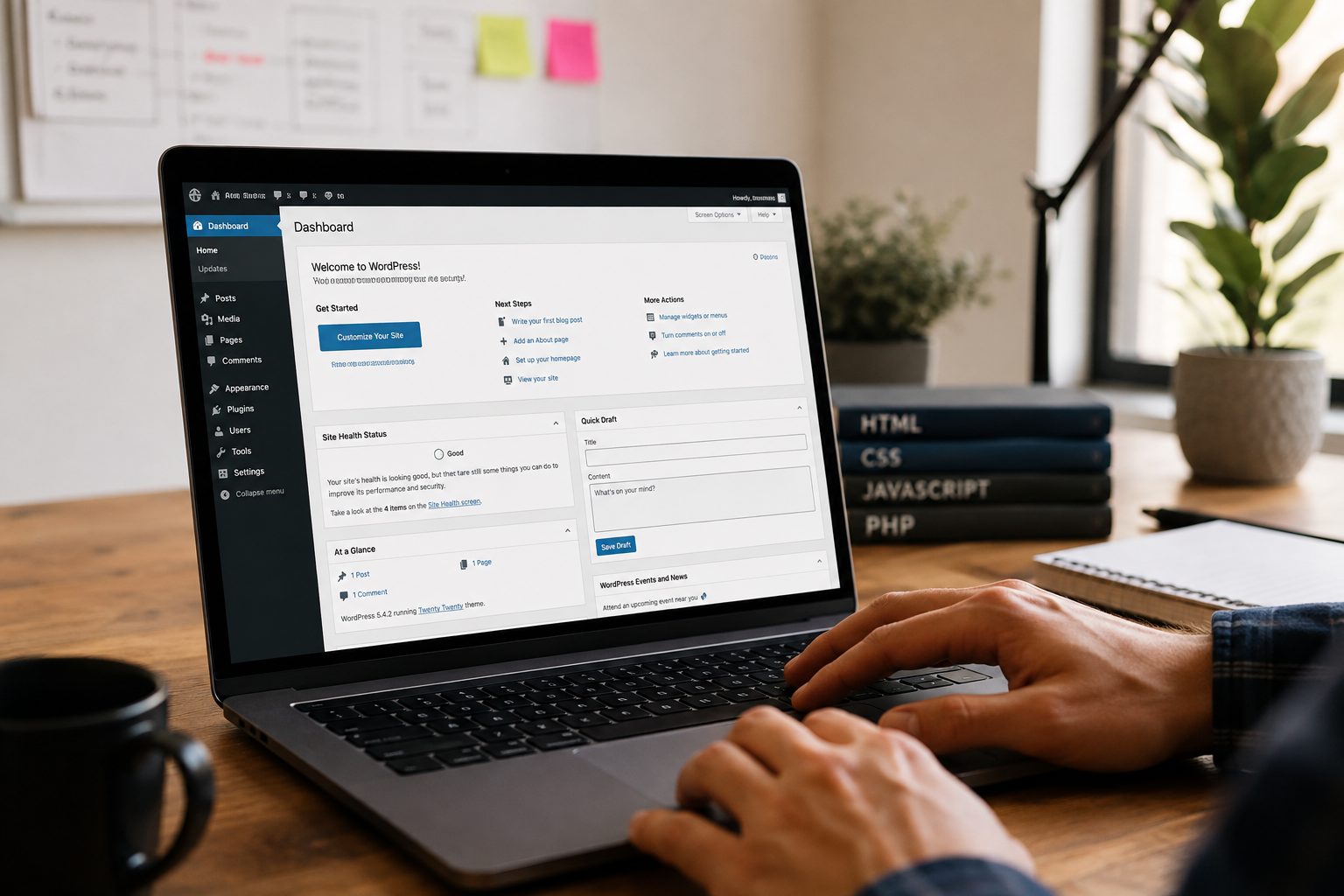
Log into the WordPress dashboard and open the Plugins section. From there, click Add New and search for a maintenance mode plugin.
Once you find a plugin you want to use, click Install and then Activate. After activation, the plugin will appear in your dashboard settings.
Step 3 – Enable Maintenance Mode
Open the plugin settings page and activate maintenance mode. Most plugins include a simple option that allows you to enable or disable maintenance mode with a single click.
You can usually customise the message displayed to visitors and choose whether administrators can continue accessing the website.
Step 4 – Preview the Maintenance Page
Before performing updates, it is helpful to preview the maintenance page. This allows you to confirm that visitors will see the correct message.
Opening your website in a private or incognito browser window will show the page exactly as visitors will see it.
Step 5 – Disable Maintenance Mode After Updates
Once your updates or maintenance work are finished, return to the plugin settings and disable maintenance mode. This allows visitors to access the website normally again.
How to Enable WordPress Maintenance Mode Manually
Some website owners prefer enabling WordPress maintenance mode manually. This method provides more control but requires access to the website files.
Manual maintenance mode works by creating a small file that tells WordPress to display a maintenance message instead of loading the full website.
Step 1 – Access Your Website Files
To begin, access your website files through your hosting environment. This can be done using an FTP client such as FileZilla or through the file manager provided by your hosting control panel.
Both tools allow you to open the main WordPress directory where the website files are stored.
Step 2 – Create a Maintenance File
Next, create a maintenance file that contains the message visitors will see.
This file tells WordPress to temporarily display a maintenance page while updates or changes are being performed. The message can be simple and should reassure visitors that the downtime is temporary.
For example, the message might explain that the website is currently being updated and will return shortly.
Step 3 – Upload the Maintenance File
Upload the maintenance file to the root directory of your WordPress website. Once the file is active, visitors will see the maintenance message instead of the normal website.
Administrators can still access the site while maintenance work continues.
After updates are complete, removing the maintenance file restores normal access to the website.
Customising the WordPress Maintenance Mode Page
The default maintenance message used by WordPress is simple and functional, but it may not look professional for business websites.
Customising the maintenance page allows website owners to maintain their branding even while the website is temporarily unavailable.
A customised maintenance page might include the company logo, brand colours, or a short message explaining that updates are being carried out.
Providing an estimated completion time can also help reassure visitors that the website will return soon.
Some websites include additional information such as contact details or links to social media profiles. This allows visitors to stay connected even while the site is offline.
Maintenance mode plugins often make customisation very simple. Many plugins include templates that allow users to design a maintenance page without needing technical skills.
A well designed maintenance page can help maintain a positive impression while updates are being performed.
How to Disable WordPress Maintenance Mode
Once maintenance tasks are finished, the website should return to normal operation.
The process for disabling maintenance mode depends on how it was originally enabled.
If you used a plugin, simply return to the plugin settings and switch maintenance mode off. Once the setting is disabled, visitors will be able to access the website again.
If maintenance mode was enabled manually, you must remove the maintenance file from the WordPress root directory. This can be done through the hosting file manager or FTP.
After removing the file, it is important to test the website to confirm everything works correctly. Visit several pages and check that images, layouts, and features load normally.
Common Issues With WordPress Maintenance Mode
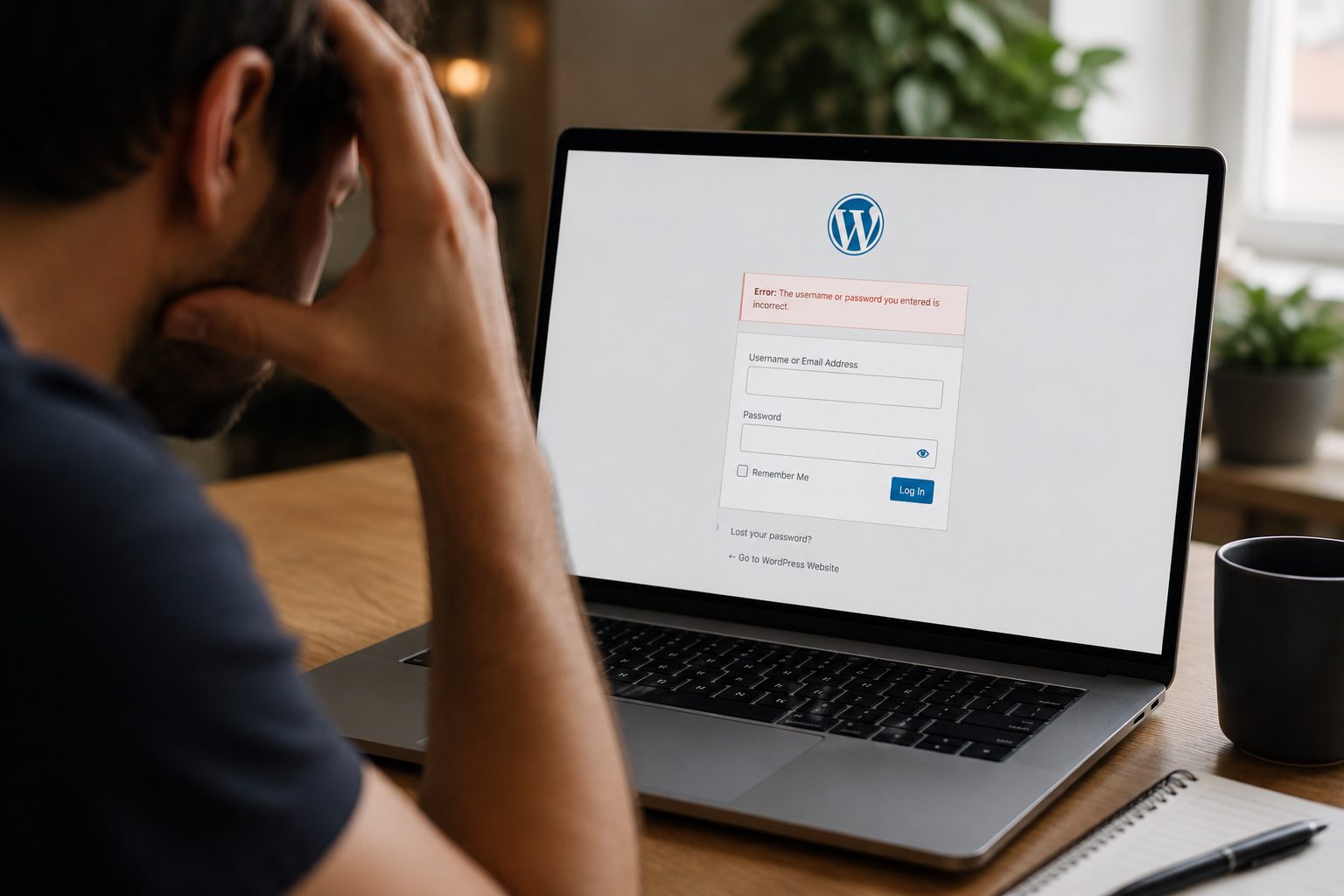
In some situations, WordPress may become stuck in maintenance mode. This can happen if an update process stops unexpectedly or if a plugin conflict interrupts the update.
When this happens, visitors may continue seeing the maintenance message even after updates are finished.
Common issues include:
- The website remaining in maintenance mode after updates
- Plugin conflicts interrupting the update process
- Incomplete updates preventing the site from loading
In most cases, the problem can be resolved by deleting the .maintenance file from the WordPress root directory.
Clearing the browser cache and checking recently installed plugins may also help resolve the issue.
If the problem continues, professional assistance may be required to restore the website.
If you need help fixing maintenance mode errors or managing website updates, you can get started with Fly High Web for professional support.