Running a business website can feel slightly stressful at times, so protecting the work on your site is very important. A WordPress website stores content, images, customer information, and settings that keep everything functioning properly. If that data disappears, the impact on a business can be quite serious.
A backup is simply a saved copy of your website that can be restored if something goes wrong. In simple terms, it acts as a safety net for your site. Many website owners only realise the value of backups after something breaks, which can create unnecessary panic.
Problems such as hacking attempts, faulty updates, hosting failures, or simple mistakes can damage a website without warning. Without a backup available, recovering that site could become extremely difficult.
The good news is that creating a WordPress website backup is actually quite straightforward. With the right tools and a little guidance, most website owners can protect their website in just a few steps.
This guide explains why backups are important, what should be included in a WordPress backup, and how to backup a WordPress site using plugins or manual methods.
Why Backing Up Your WordPress Site Is Important

A WordPress website backup is a complete copy of your website that can be restored if something goes wrong. This copy includes your files, content, and database so the site can return to a working state.
Many website owners assume their hosting provider automatically manages backups. Sometimes that may be true, yet hosting backups are not always frequent or reliable. Relying only on your hosting provider can leave your website exposed if a problem occurs between backup cycles.
Website issues can happen unexpectedly. Plugin conflicts, software updates, security problems, or human error can all affect how a site works. When a backup exists, recovering from these issues becomes much faster and far less stressful.
Common causes of website data loss include:
- Plugin or theme update conflicts breaking the website
- WordPress core updates creating compatibility issues
- Hacking attempts or malware infections damaging files
- Server failures or hosting problems
- Human error such as accidentally deleting content or files
Without a working backup, restoring a damaged website can become extremely complicated. Files may be missing, the database may be corrupted, and rebuilding everything manually could take many hours.
Regular WordPress backups provide peace of mind. If something goes wrong, you can restore your website quickly and continue running your business.
What Should Be Included in a WordPress Backup?
A complete WordPress website backup contains two key components. Both parts work together to make the website function properly. If one element is missing, restoring the website may not work correctly.
Website Files
Website files form the visible structure and functionality of your website. These files exist on the hosting server and control how the site loads and behaves.
Typical website files include:
- WordPress core files that run the platform
- Installed plugins that add functionality
- Installed themes that control the design and layout
- Media uploads such as images, videos, and PDF files
- Configuration files including wp-config.php
These files determine how the website looks and how different features operate.
WordPress Database
The WordPress database stores the dynamic content of your website. This information changes regularly as visitors interact with your site.
The database typically stores:
- Blog posts and pages
- User accounts and login information
- Visitor comments
- Website settings and configuration
- WooCommerce product and order data if an online shop exists
Both the files and the database must be backed up together. If one part is missing, restoring the website may lead to errors or missing information.
Many business owners prefer to have this handled automatically through a professional WordPress maintenance service.
A maintenance service often includes scheduled backups, security monitoring, and software updates that help protect the website consistently.
Different Ways to Backup a WordPress Site
There are several methods available for creating a WordPress website backup. Each option has advantages depending on your technical experience and how much control you want.
The three most common methods include plugin backups, manual backups, and hosting backups.
Plugin Backups
Backup plugins provide the easiest option for most WordPress users. These tools install directly within WordPress and guide you through the backup process.
Many plugins allow you to schedule automatic backups. This means your site can be backed up daily, weekly, or monthly without manual effort.
Manual Backups
Manual backups involve downloading website files and exporting the database directly from your hosting environment. This approach provides complete control over the process but requires some technical knowledge.
You usually need access to tools such as FTP software or your hosting control panel.
Hosting Backups
Some hosting providers include automatic backups within their hosting plans. These backups run at intervals defined by the hosting company.
However, not all hosting providers offer reliable backups. Some backups may only be stored for a limited time.
A simple comparison of the three methods looks like this:
- Plugin backups – beginner friendly, easy to automate, minimal technical knowledge required
- Manual backups – full control over the process, but more technical
- Hosting backups – convenient if available, but not always reliable or frequent
For many beginners, using a WordPress backup plugin is the simplest approach.
How to Backup Your WordPress Site Using a Plugin

Using a plugin is usually the easiest way to create a WordPress website backup. Most plugins simplify the process and allow you to automate backups once the plugin is configured.
Follow these steps to backup your WordPress site using a plugin.
Step 1 – Choose a Reliable Backup Plugin
Start by selecting a trusted WordPress backup plugin. Many plugins offer features such as automated backups, cloud storage integration, and simple restoration options.
Some security plugins also include backup features. If you want to explore security tools that protect your website, you can review these 5 WordPress plugins.
Step 2 – Install and Activate the Plugin
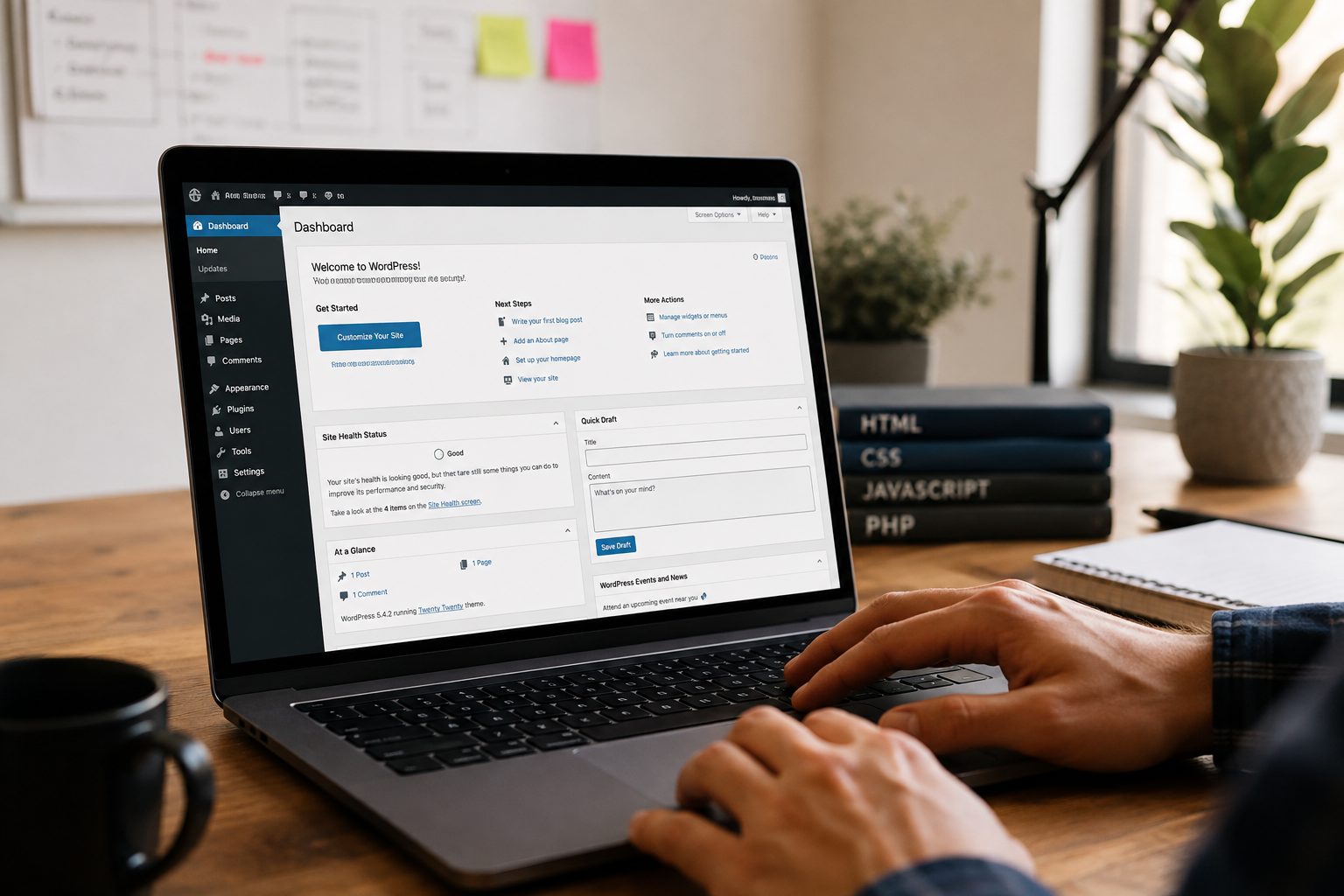
Log into your WordPress dashboard and open the plugin directory.
Search for the backup plugin you selected, then click install. Once the installation finishes, activate the plugin so it becomes available within your WordPress settings.
Most backup plugins create a dedicated backup settings page in the dashboard.
Step 3 – Configure Backup Settings
After activating the plugin, configure the backup settings.
Typical options include:
- Website files
- WordPress database
- Media uploads
- Themes and plugins
You can usually select how often backups should run. Common schedules include daily, weekly, or monthly backups.
Step 4 – Run the First Backup
Once the settings are configured, run your first manual backup. This confirms that the plugin is working correctly and creates the initial copy of your website.
The process may take several minutes depending on the size of your site.
Step 5 – Enable Automatic Backups
Finally, enable automatic backups so the plugin can create backups on a regular schedule.
Testing backups occasionally is recommended. A backup is only useful if it can successfully restore the website.
How to Backup Your WordPress Site Manually
Manual backups provide complete control over the WordPress backup process. This method requires access to your hosting account and some familiarity with server tools.
Although it is slightly more technical, the process becomes manageable when broken into clear steps.
Step 1 – Backup Website Files
The first step in a manual WordPress backup involves downloading the website files stored on the server.
This can be done using:
- An FTP client such as FileZilla
- The hosting provider file manager
After connecting to the server, locate the WordPress installation folder. Inside this folder you will find the files that power your website.
Important folders to download include:
- wp-content
- themes
- plugins
- uploads
Configuration files such as wp-config.php should also be downloaded.
These files should be saved in a secure location on your computer or backup storage.
Step 2 – Export the WordPress Database
The second step involves exporting the WordPress database that stores your website content.
Most hosting providers include a tool called phpMyAdmin inside the hosting control panel.
The export process usually includes:
- Logging into your hosting account
- Opening phpMyAdmin
- Selecting your WordPress database
- Choosing the export option
This will generate a database file containing your posts, pages, user accounts, and website settings.
Both the files and the database must be stored together. Restoring a WordPress site requires both components.
How Often You Should Backup Your WordPress Site
Backup frequency depends on how often your website content changes. Websites that update frequently require more regular backups.
Common backup schedules include:
- Daily backups – recommended for ecommerce websites or sites handling customer orders
- Weekly backups – suitable for blogs or business websites that publish content regularly
- Monthly backups – acceptable for websites with minimal updates
Automated backups reduce the risk of forgetting to perform this task.
Websites handling payments, customer data, or user accounts usually benefit from frequent backups since losing this information could impact business operations.
Where to Store Your WordPress Backups Safely
Storing backups in only one location can create unnecessary risk. If the server fails or becomes compromised, backups stored in the same place may be lost.
For this reason, many website owners store backups off site.
Common storage options include:
- Cloud storage services such as Google Drive or Dropbox
- External hard drives stored securely
- Remote backup servers
- Secure hosting backup storage
Several best practices improve backup security:
- Store backups in multiple locations
- Avoid storing backups only on the same server as the website
- Encrypt sensitive backups where possible
Managing backups manually can take time. Many businesses prefer ongoing support from a professional team.
If you want help managing backups, updates, and security, you can get started.